POS & kitchen — illustrated tour
Illustrated POS guide: counter, staff logins, lock screen, shifts, PIN approvals, dual currency, receipts, barcodes, reports, and kitchen.
LBeirut POS is a fast selling surface on the same catalog as your storefront — dual currency (USD + LBP), barcode scanning, thermal print, daily reports, and a live kitchen board — plus separate staff accounts, counter lock, shifts, and PIN approvals. This guide shows the real screens and why each feature builds trust.
Full counter — the heart of the shift
Three zones on one screen: product catalog with photos, the ticket with quantities, and payment (amount tendered + change). Search or scan, add to cart, choose cash or delivery, complete the sale.
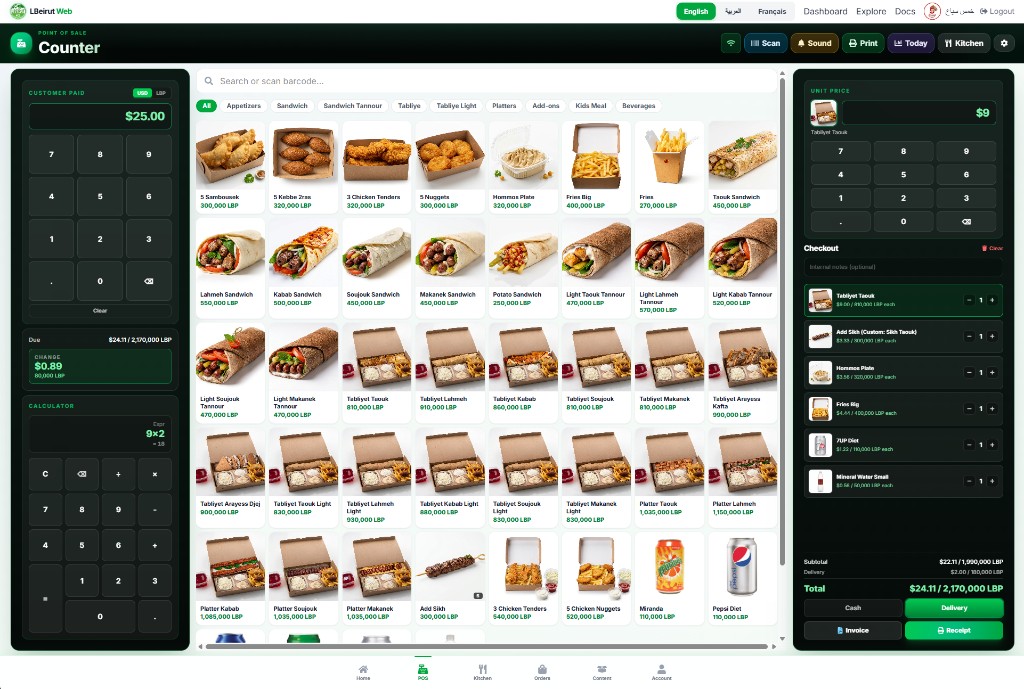

- Product photos sell faster than text alone — the same storefront images appear on the counter
- Category chips (appetizers, sandwiches…) cut pick time
- Today gives a quick Z-report to reconcile the drawer without reprinting every receipt
- Staff see a Lock button instead of owner Settings — one tap locks the counter
Staff — owner · manager · cashier
From Content → POS staff you create people for the store without giving them the full owner dashboard. Each person gets an independent login code (e.g. @128MF-abdo) shown next to their name.
- Owner
- Full dashboard + emergency PIN for approvals when the manager is away
- Manager
- Name + PIN only — signs in with code + PIN and approves price/discount/void
- Cashier
- Name + password (+ optional lock PIN), assigned to one manager
- 01
Create a manager first
Content → POS staff → Create manager (name + 4–6 digit PIN + branch if any).
- 02
Create a cashier
Create cashier: name + password + assigned manager + permissions (shift, drawer, reports…).
- 03
Staff sign-in
Only on pos.lbeirut.website — separate from the owner dashboard, even in a new tab.
Counter lock & PIN approvals
- Lock: staff lock the screen; unlock needs a PIN (cashier, assigned manager, or owner)
- Lock is server-enforced — sales and voids are blocked while locked
- Price edit or cart discount without permission → assigned manager PIN only (or owner PIN)
- Void uses the same approval rules
- Staff cannot approve their own sensitive action
Shifts & daily ops
- Open a shift with an opening cash float
- Close a shift with a cash count and reconciliation
- Hold a ticket and recall it later on the same device
- Attach a customer (name/phone) to the order
- Pay cash, card, or split (cash + card) — magstripe swipe stores last 4 digits only
- Cash-drawer kick via Web Serial when enabled with print
- Stock shown on product cards when enabled in POS settings
When POS appears
- Plan that supports POS (usually Pro / Enterprise)
- POS enabled in settings/activity
- Sometimes extra conditions by theme or having products
- Kitchen appears with a suitable ops profile + POS
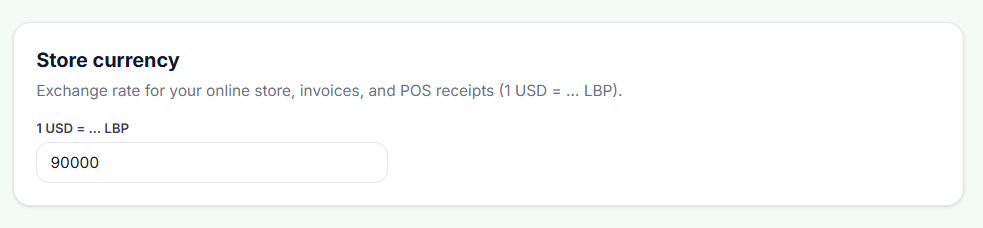
Exchange rate — one source of truth
Set how many LBP equal one USD. That rate feeds the storefront, invoices, and POS receipts together — no “approx” counter prices that disagree with online.
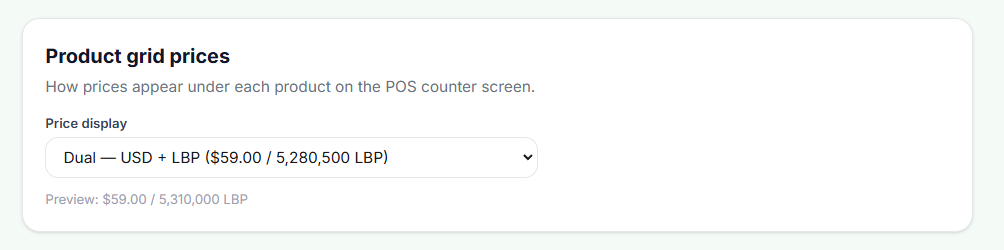
Product grid prices on the counter
Choose how prices appear under each product: USD only, LBP only, or dual. Live preview shows what cashiers will see before you save.
Thermal receipt display
Control what prints on the 80mm thermal receipt: line items and totals — LBP only or dual. Ideal when paper needs LBP while the system keeps USD.
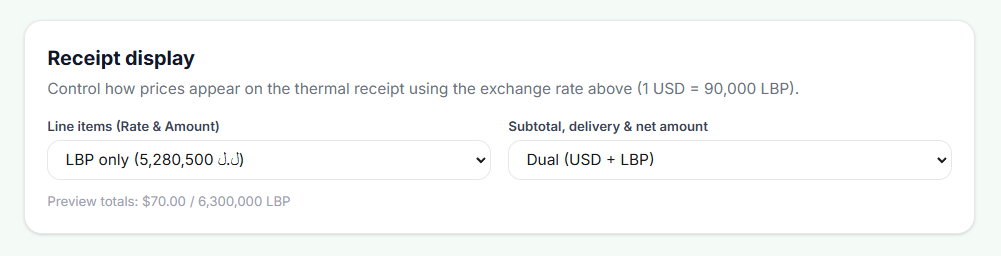
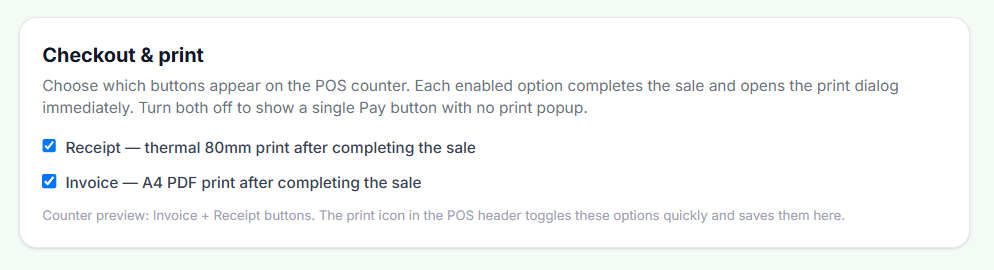
Checkout & print — finish buttons
Enable Receipt and/or Invoice on the counter. Each button completes the sale and opens print immediately. Turn both off for a single Pay button with no print popup.
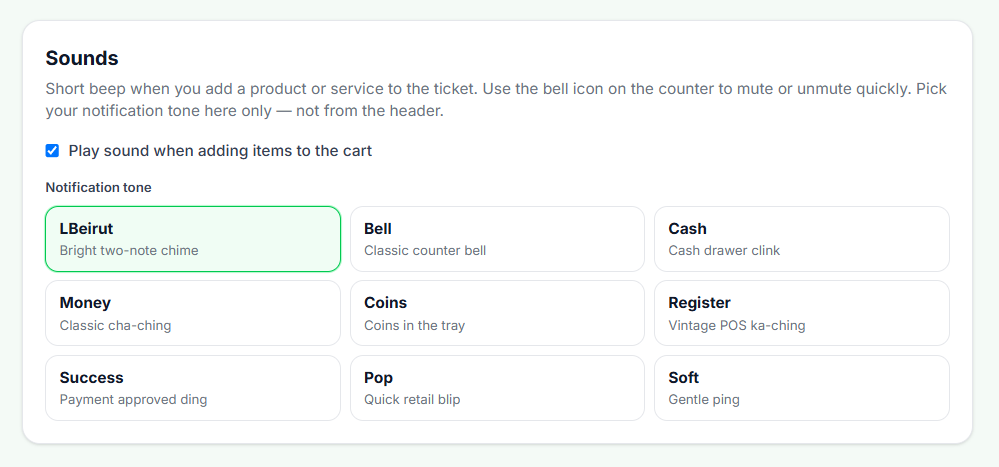
Sale sounds — a living shop feel
A short tone when an item hits the ticket. Pick from 9 tones (LBeirut, Bell, Cash…). Mute quickly from the bell icon on the counter.
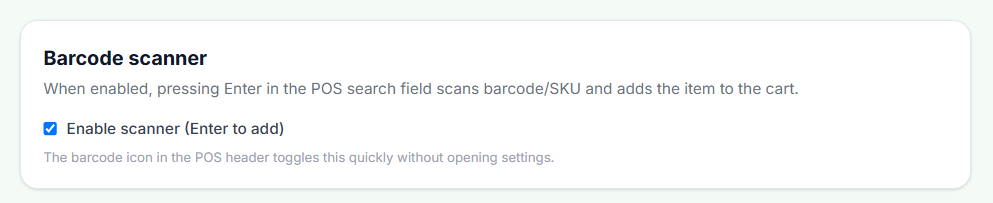
Barcode scanner
When enabled, Enter in POS search scans barcode/SKU and adds the item instantly. The header barcode icon toggles the mode fast.
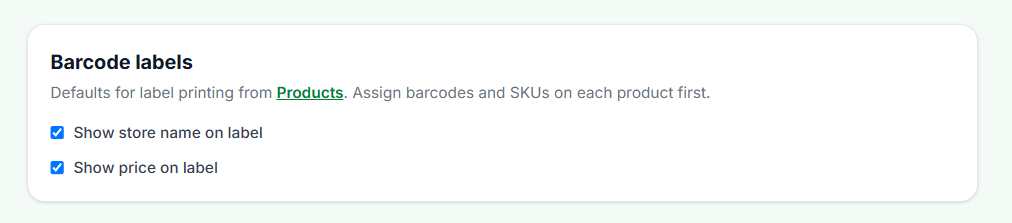
Barcode labels
Defaults for label printing from Products: show store name and/or price. Assign SKU/barcode on each product first.
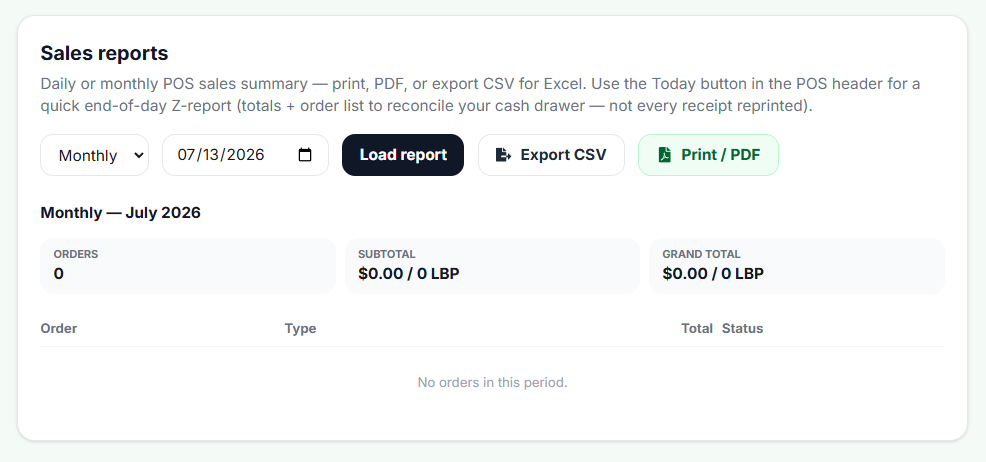
Sales reports
Daily or monthly summary: order count, dual-currency totals, CSV export, and Print/PDF. Today in the header = quick end-of-day Z-report.
POS on phone & tablet
This is the real phone counter your team uses: product grid with photos, Counter toolbar, then the Current ticket with dual-currency totals and Cash / Delivery / Invoice / Receipt.
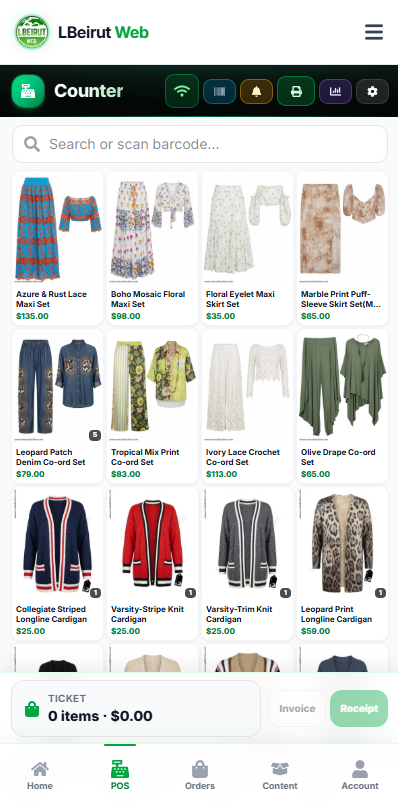
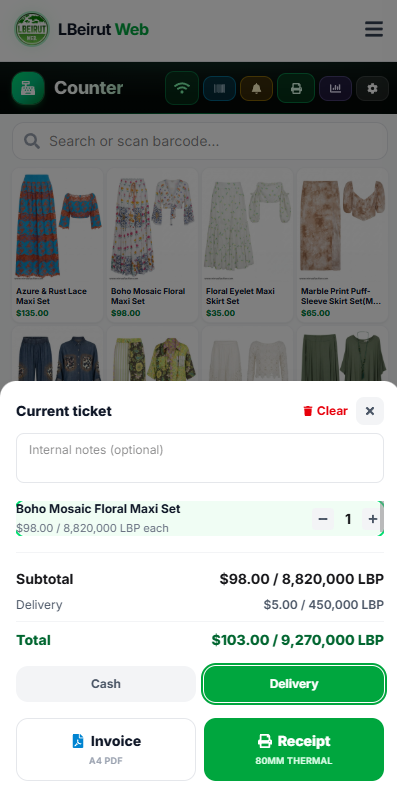
POS on phone — catalog then ticket. Full desktop power in one thumb.
Payment & calculator panels (side close-ups)
On desktop, the left and right rails are focused panels: unit price, cart, amount paid, change, and calculator. Below are compact side-by-side close-ups so you can read each rail without filling the page.
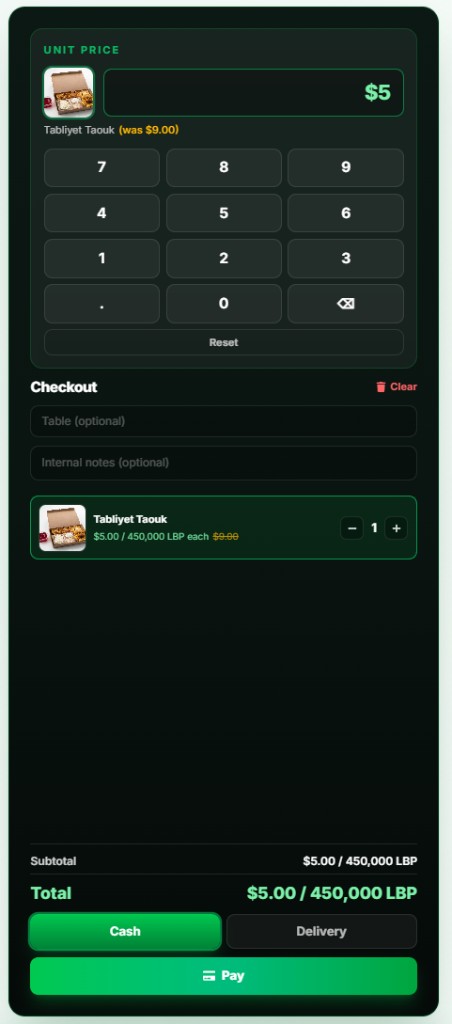
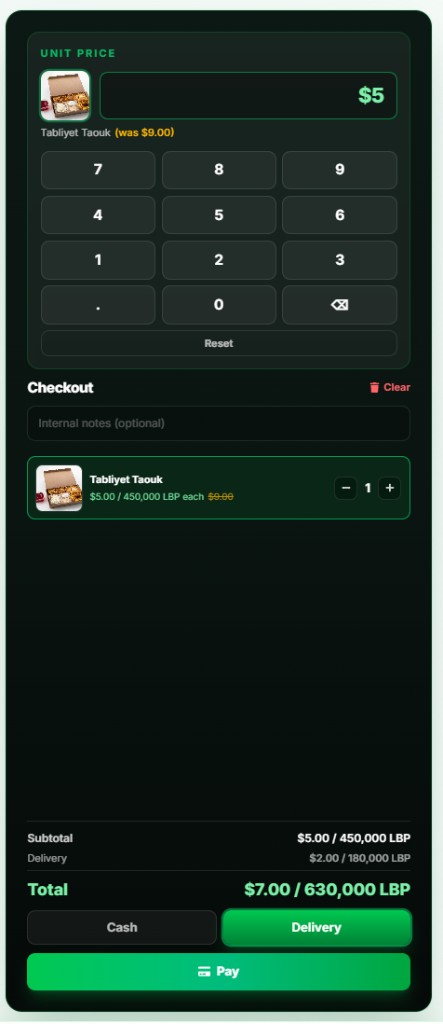
Side panels — unit price and cart/pay (compact for quick review).
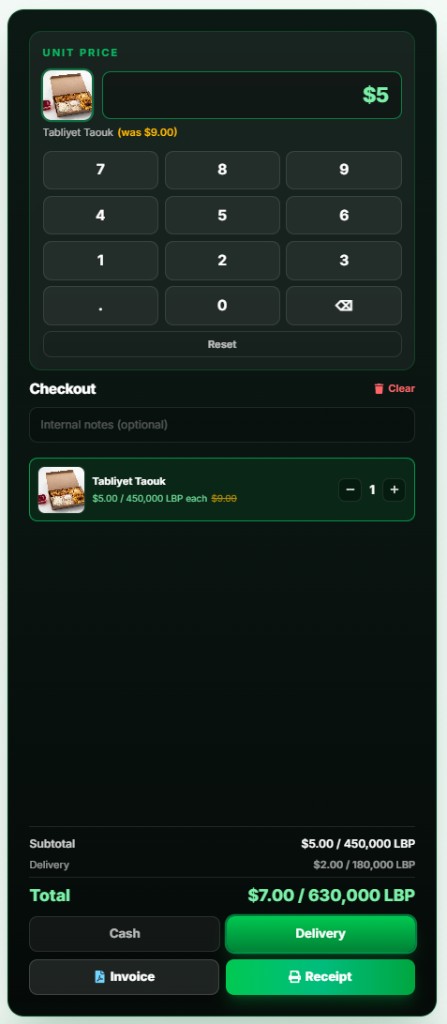
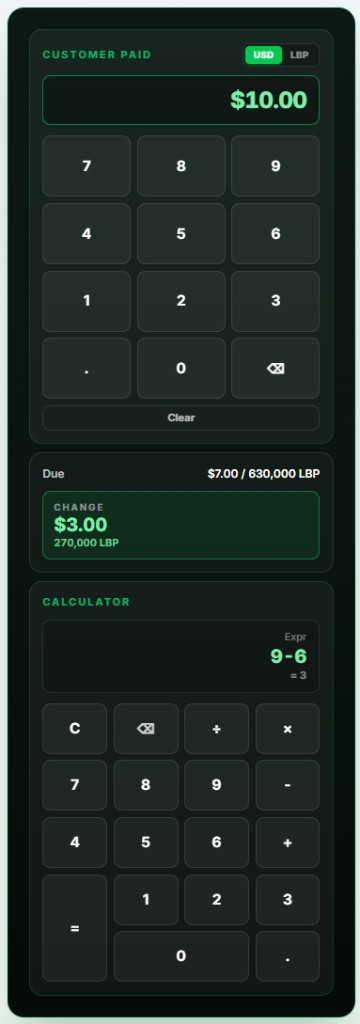
Finish & change — print actions + Customer Paid / Change / Calculator.
Fast sell path (checklist)
- 01
Search or scan
Product name or barcode/SKU with Enter-to-add if the scanner is enabled.
- 02
Review the cart
Photos, quantities, dual prices, visible discounts.
- 03
Choose mode
Cash/pickup or delivery (+ table label when needed).
- 04
Pay
Cash / card / split — with PIN approval if a price edit or discount needs it.
- 05
Complete the sale
Thermal receipt and/or A4 invoice by settings.
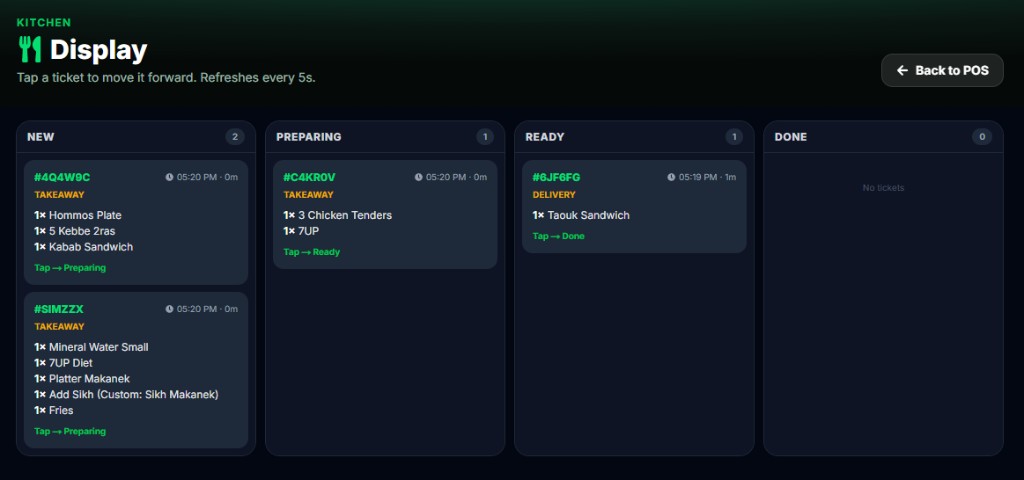
Kitchen display (KDS)
Kanban board: New → Preparing → Ready → Done. Tap a ticket to advance. Refreshes every 5s, with takeaway/delivery type and item list.